Last updated on April 10th, 2019 at 06:20 am
You have this awesome blog and you’ve been working on it any spare moment you get. If you’ve setup Google Analytics on your WordPress blog, then it’s time to take it a step further. I am going to show you how to remove yourself from your analytics tracking.

Now before I do, let me explain why you need to do this.
Why You Need to Remove Yourself From Your Analytics
As a blogger we all want eyeballs on our blog, the more the better. No one wants to keep writing awesome content and not have anyone reading it or sharing it.
If you’re like me you are trying to grow your blog fast. This means that I am publishing 2 new posts per week and spend a lot of my time promoting my content and creating videos for my YouTube channel.
At first when you’re just starting your blog, no one even knows it exists. However, as soon as it starts to grow and gets a little traction you find yourself checking your stats too much. (at least I know I do)
You start to get a little excited because you see that people are starting to visit your blog. Then you start thinking “hey maybe this blogging stuff actually works!”
So what do you do? You start checking your stats on a daily basis, and spend less time doing productive tasks. By check out my ultimate guide to Google Analytics to see which reports I pay attention to.
Don’t lie, we all find ourselves in that predicament when we first start our blogs. We waste a lot of time doing useless stuff that doesn’t help us grow. Before we know it the day has flown by and we haven’t done a thing, except check our Google Analytics account several times to see if we have real time visitors.
Now I am NOT saying that you shouldn’t check your Analytics. What I am saying is that you don’t want to become obsessed with checking the stats on a daily basis.
Instead you need to put your head down and work on tasks that will help your blog grow.
Watch This Video and Follow Along
Remove Yourself From Your From Your Analytics
So let’s add a filter to remove our own visits to our WordPress blog. This way you can actually see if you are actually getting visitors to your blog and where they are coming from.
(If you still haven’t installed it on your blog, I’ve written a great tutorial that will help you install Google Analytics on your WordPress blog)
Step 1: Log Into Your Account
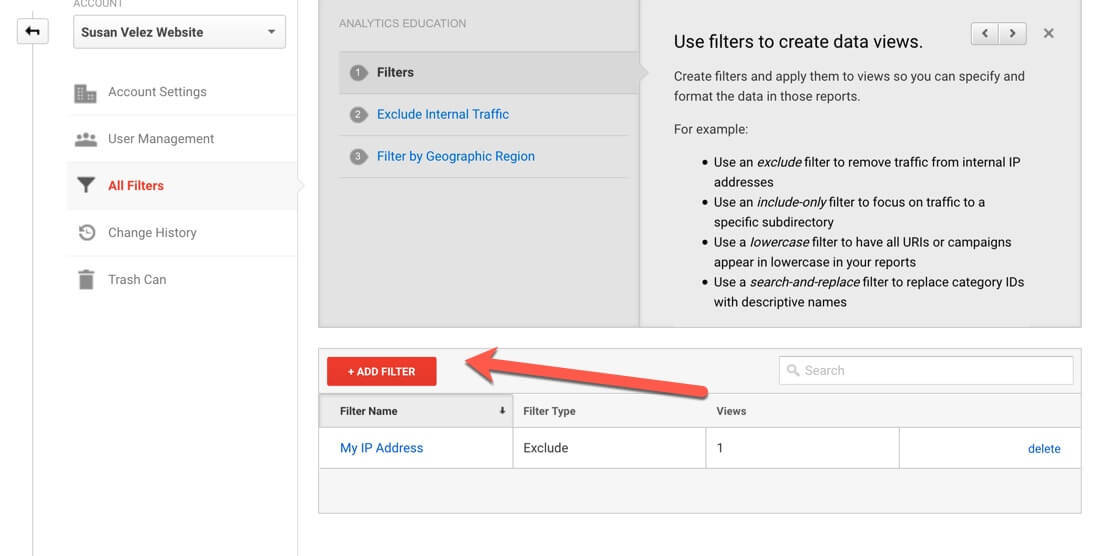
Head on over to Admin > All Filters

Step 2: Add A Filter
We are going to be adding a filter to our Analytics so we stop tracking our own visits to our blog.
Click on the red Add a Filter button on that page.
Step 3: Add Filter to View
This step requires you to fill out the filter name and define the type of filter you want to setup. Follow along as I show you exactly what you need to do to get this to work.

Let’s run through the settings in the image step-by-step.
Filter Name: Just give it a name so you know what the filter is. I named mine “My IP Address”
Filter Type: Leave it on predefined
Exclude: We are setting up the filter to exclude your visits.
Traffic from the IP addresses: This is what we want to exclude
That are equal to: We want to make sure that the IP exclusion is equal to.
IP Address: Type in your IP Address
Available Views: We want to exclude it from the entire site
Selected Views: Leave it blank
Once you’ve entered all the necessary information, click save.
Finding Your IP Address for Exclusion
If you don’t know what your IP address is then open up your favorite search browser and type in “what’s my IP.” It will display what your IP is at the very top. If you choose you can visit this site to get more information about your IP address.
Copy your IP address and then go back to your Google Analytics account and paste the IP address in the proper text box.
Filter Has Been Added
Once you add the filter and click save, your visits to your own blog will no longer be tracked.

You can see the process to set it up was simple and quick. This alone will keep your stats from getting all screwed up.
When I first set up my blog, I didn’t setup a filter right away. So my stats got screwed up and I thought my blog was receiving visitors and helping my bounce rate, when in fact I was the only one visiting my own blog.
Final Take Away
Tracking what people are visiting and how they are finding your blog is extremely important. This helps you determine which marketing efforts are actually working. As you start getting more and more traffic, you will be able to fix your bounce rate by providing content people want.
If you’re a new blogger and still haven’t setup Google Analytics please take the time to do so. Don’t forget to remove yourself from your analytics, so your own views don’t count.
Please don’t spend so much time checking your stats. I know you want to see traffic to your blog. The only way to do that is to keep producing awesome content, install a plugin that makes it easy for people to share your content.
Don’t forget about promoting your content. I don’t care how great your content is. If you’re not promoting it, then no one is seeing it. Ask any successful blogger and they will tell you that writing your blog post is the easy part.
The real work starts after you hit publish.
I know that you want people to read your awesome content and want to start making money. Keep growing your blog and using your time productively.
I still catch myself wanting to check my stats everyday, I’m trying to break myself of that habit.
My goal is to only check my stats once per month.
Are you tracking your visitors with Google Analytics? How often do you find yourself checking your stats? Let me know below.


Thank you for this, Susan. I had done it before on other URLs but forgotten how. This was really well put together and easy to follow
Hi Jane,
Welcome to my blog and so glad to hear that you found it easy to follow along with.
Thanks for taking the time to stop by and comment.
Have a great day 🙂
Susan