Last updated on August 1st, 2018 at 06:52 pm
Updating WordPress from one version to the next can be confusing and scary. In a perfect world, we would be able to maintain our blog without worrying about technical difficulties. However, when disasters strikes, you need to know how to deal with it.
I am going to teach you how to update the WordPress core and the quickest and easiest way deal with issues.

This post won’t show you how to fix the issues you’re dealing with. We all use different themes and plugins to run our business, so it’s impossible to troubleshoot all the errors.
What I can do is get your blog backup and running the way it was before you upgraded. Let me walk you through the update process and show you how to revert back if you need to.
[thrive_2step id=’860′]
 [/thrive_2step]
Before We Update The Core
It’s important to understand that if you’re managing your own blog, this is a task that you can’t avoid.
[clickToTweet tweet=”Learn to manage your blog, skills to make money. #WordPress #freetraining at susanvelez.com ” quote=”Learn to manage your blog, skills to make money. #WordPress #freetraining at susanvelez.com ” theme=”style4″]
WordPress releases new updates on a regular basis to improve security. If you ignore these updates, you are leaving your blog vulnerable to hackers.
I know that it’s scary working with WordPress, especially if you’re new to it.
The great thing is that there is almost nothing you can do to break it and if it does break, chances are it can be fixed.
The best thing you can do for your blog is to have a backup plan. So before we get started, be sure you’ve read this tutorial on how to backup your blog. I don’t want anything happening you can’t fix.
How To Update The WordPress Core
At the time of this writing WordPress just rolled out version 4.7, you can read more about the details here.
You may be running version 4.6.1 and are wondering how to update it. This update process works for all versions of WordPress, regardless of what version you’re running.
Let’s get started.
Log into your main dashboard and click on the “Please update now.”

You will be taken to the next screen. It prompts you to make a backup before proceeding with the update.
So if you haven’t stop and make one.

You may have to give it some time process through the entire update.

Hopefully, if everything went well you will see the new Welcome message that says “Thank you for updating to the latest version! WordPress 4.7 helps your site get set up the way you want it.”

Now you start to relax because you think that everything is fine and you don’t have to worry about dealing with any type of technical issues.
What Kind Of Issues Can I Face?
In a perfect world when you updated WordPress nothing would break. Everything would work as it currently does.
However, things break and sometimes the newer versions are not always compatible with every theme or plugin.
This is especially true if you’re using free themes and plugins. Most of the time, the developers will fix the compatibility issue.
However, this can be bad for you, after all you’ve already updated your WordPress blog and now it’s not running the way that it’s supposed to.
So now you’ll have to find a replacement you can use to get your site working properly.
There are all kinds of other issues you can face as well.
The goal of this post is to show you the easiest and quickest way to get your site backup up and running before the upgrade.
So let’s get started.
Check Your Blog
After updating the core, even if everything looks good inside the dashboard. You want to look at your blog from a visitors point of view. Open up a browser and:
- Clear your cookies.
- Delete your cache plugin if you’re using the W3 Total Cache or the WP Super Cache.
- Re-activate any plugins that you may have deactivated or we deactivated during the upgrade process.
Are any of your images broken? If you have a lot of posts, you may want to consider installing some type of broken link checker notify you of broken links.
If everything looks good, then you can breathe a sigh of relief because your update was successful and now you can play around with the new version.
Dealing With Issues
If you find yourself staring at syntax errors or your blog isn’t working. Then you need to take the steps to revert your blog back to the previous working version.
You’re not alone if you’re having issues. At some point we all have to troubleshoot WordPress errors.
I recently updated a clients website from version 4.6.1 to 4.7. Everything looked great inside the dashboard however, when I went to log in, I couldn’t log in.
Something had happened during the upgrade process.
I do all my WordPress updates on my local server before I actually take them to the live server. This ensures that the client does not experience any downtime.
So let me show you what I did to revert it back to the previous version.
These are the same steps you would use on a live server or a local host.
Reverting Back To Previous Version
The only thing I knew to do was roll back to the previous 4.6.1 version. This would allow me to troubleshoot the issue of what’s causing the issue.
So I thought, why not share my rollback experience with you, just in case you have any issues with your site. When you roll back to your previous version, your site will function like it did before you updated it.
Watch Over My Shoulder As I Downgrade WordPress
Don’t like video then follow through on this step-by-step tutorial as I walk you through the entire process.
Manual WordPress Downgrade Step-by-step
In order to protect my clients privacy, I will doing the WordPress downgrade on my personal demo site.
Right now it is currently updated to the WordPress 4.7 so I will be downgrading it to the 4.5 version. I am only downloading to version 4.5 to show you that it’s possible to download to any previous version.

Step 1 : Download WordPress Version
Let’s head on over to the WordPress archives and grab the version that you want to revert back to. For this purpose, I will be downgrading to the previous version which is 4.5. You can downgrade to any version you need. (Although not sure why you would want to.)

Download the zip file for the version that you want to downgrade to and save it on your computer. I like to put mine on the desktop because it makes it easy to find.
Unzip the folder so that you can see all the WordPress files.

Step 2 Use An FTP Client To Locate Your WordPress Files
Now head on over to your favorite FTP client. We will need to access the blog that you will be reverting back to an older version of WordPress.
You can find all the WordPress files inside of your public_html.
If you are working with a sub-domain like I am then you will want to go directly inside of that folder.

Step 3: Delete The WP-Admin and WP-Includes Folders and Files
Now you will want to delete all the folders except the wp-config.php file and the wp-contents folder.

Make sure you’re inside of the correct folder. Delete everything except the wp-config.php and the wp-contents folder.
This is how it will look when you delete everything you need to.

It’s extremely important not to override this folder and file. Otherwise you will lose your current WordPress site!
Now you will want to drag and drop all the files and folders from the archive folder.
Step 4: Log Back Into Your Blog
When you attempt to log back in, you will be required to update your database.
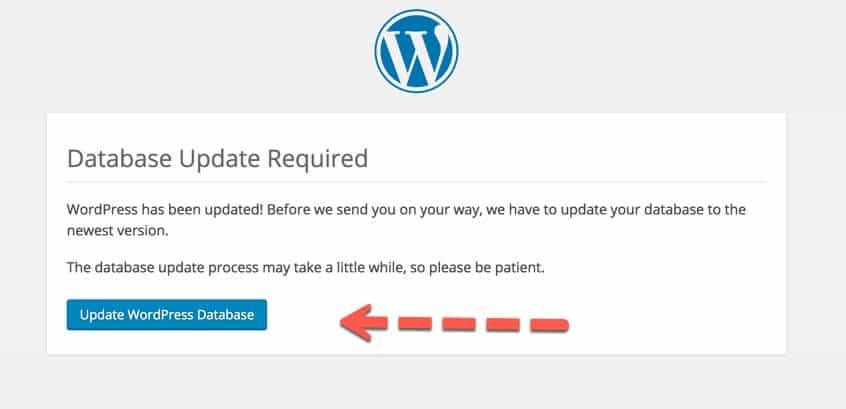
Click on the update and then you will be prompted to continue.

Now that you are able to log in, you will should see whatever version you downgraded to. Congrats!
However, reverting back to a previous version of WordPress will allow you to find out why the update is NOT compatible and why you’re having issues.
Once you troubleshoot the issue you can then upgrade the WordPress core to the latest version.
[thrive_2step id=’860′]
[/thrive_2step]
Final Take Away
If you’re managing your own blog, which you should. Paying someone to do little tasks like this can definitely break the bank, especially when you’re just starting your blog.
Hopefully, this walk through taught you how easy it is to upgrade to the newest version of WordPress. If you do happen to break something and you don’t have a backup on hand, you can always revert back to the previous version.
So have you ever upgraded your WordPress blog? Did you experience any issues, what did you do to fix them?

